
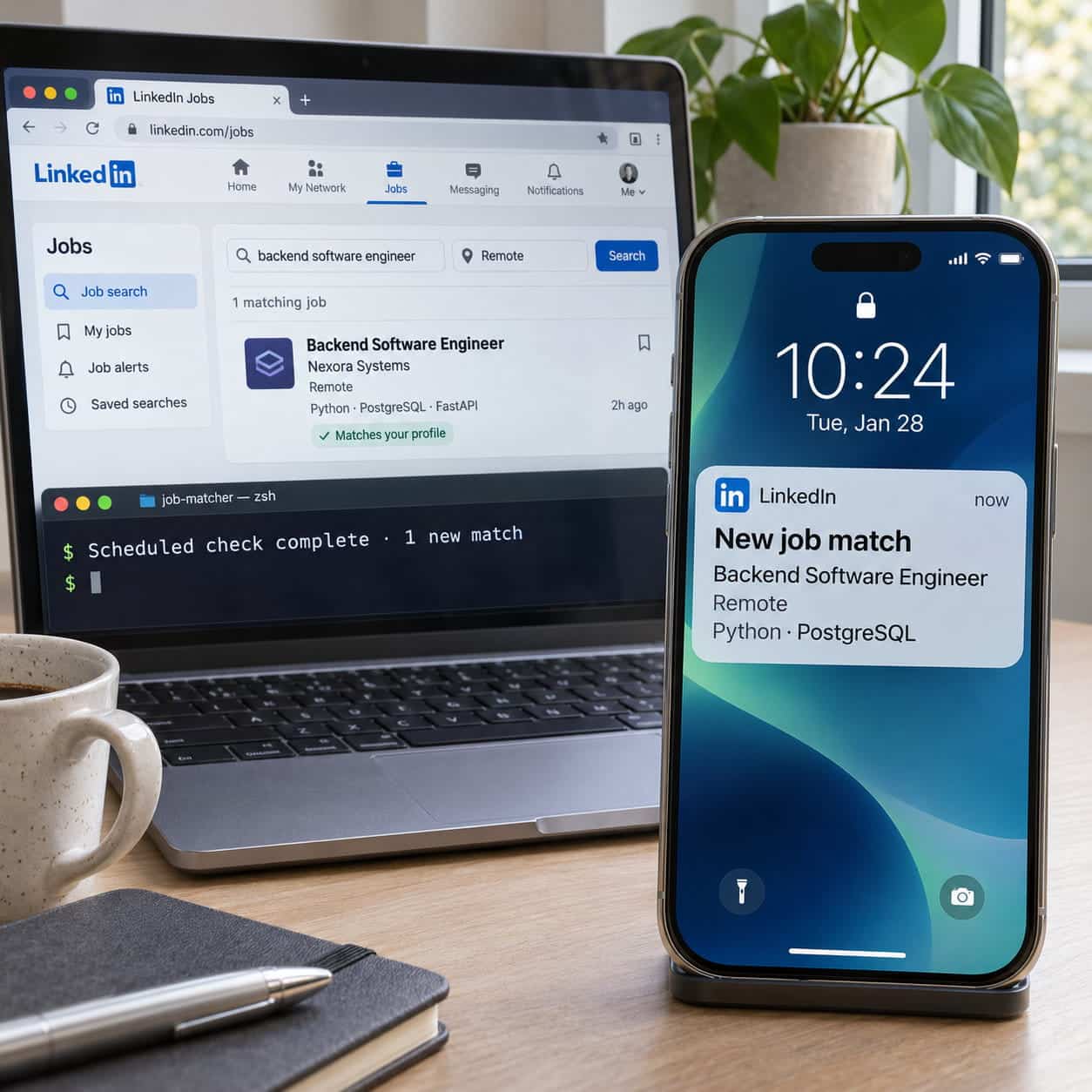
A search for “software engineer” can turn up hundreds of listings, even when you only want backend roles that use Python and PostgreSQL. A scheduled script can use a LinkedIn scraper API to check public job listings, filter them by your criteria, and alert you when it finds a new match. Define what qualifies as a match and keep track of listings you’ve already seen. With those rules in place, you can spend less time repeating searches and more time reading relevant job descriptions.
Define the Roles You Want to Find
Write down your requirements before choosing an endpoint. Start with role titles, seniority, location, and work arrangement. For example, you might want backend or platform engineering roles at the mid or senior level, with remote work available in your country. A listing marked “remote” may still restrict where applicants can live, so check the description for eligibility when the location field is broad.
Separate required technologies from preferences. For a Python backend search, Python and PostgreSQL could be requirements, while FastAPI and Docker could raise a listing’s priority. Keep these criteria in a configuration file so you can adjust them without rewriting the script. Use broader search terms at collection time, then apply detailed rules locally. A role titled “Software Engineer II” may describe the stack you want even if the title never mentions it.
Collect the Public Listing Fields You Need
Choose a LinkedIn scraper API that offers authorized access to public job listings and supports the searches your tracker needs. Test a small request before committing to the integration. Look for a stable job ID, title, company, location, posting date, public URL, and description. If search results contain only excerpts, check whether a detail endpoint returns the full description. Use that endpoint for likely matches after filtering by title and location to keep request volume manageable.
Store the API credential outside your code and run requests from the server or machine that hosts the script. Follow pagination until you reach your configured cutoff. If results are reliably ordered by posting time, stop once you reach listings older than your search window. Otherwise, apply the cutoff to each record. Save when you first saw the listing separately from when it was posted.
Filter Listings for Your Tech Stack
Normalize titles and descriptions before matching. Use case-insensitive comparisons and recognize aliases such as “Postgres” and “PostgreSQL.” Match complete words or phrases where possible. A substring search for “Go” could flag a description that says “go to market,” while a rule for “Go programming” or “Golang” gives you a clearer signal.
Read matches in context when the wording affects your decision. A listing that says “Python or Java” might qualify if you’re comfortable applying with Python. A role that calls Python a bonus while emphasizing Java may deserve a lower priority. Test the rules on listings you would apply to and listings you would skip. If a description is missing, mark the stack as unverified and keep it out of confirmed alerts.
Store Job IDs and Send Alerts Once
Use a small database to track each listing by its stable job ID. If the ID is unavailable, use a normalized public job URL as a fallback. Keep separate fields for when you first found a listing and when you successfully sent its alert. This lets the script retry a failed notification even if the listing no longer appears in the next search.
Queue a notification when a listing first meets your rules. Include the title, company, location, technologies that matched, and a link to the original post. Include the original posting date. On the initial run, save existing listings as a baseline if you only want alerts for future discoveries. After that, mark each alert as sent after the notification service acknowledges it. If the service supports idempotency keys, reuse the same key on retries to prevent duplicates when delivery succeeds, but the script misses the confirmation.
Schedule Runs and Test the Tracker
Set a scheduler to run the script at an interval that fits your search and request budget. For example, start with a check every two hours. Use a small overlap in the search window to catch late listings, and rely on stored IDs to handle repeated results. Prevent overlapping runs, log the number of listings fetched and matched, and respect any rate-limit instructions from the service. Save the last successful collection time so an interrupted run can pick up where it left off.
Before enabling regular alerts, run the tracker twice against the same sample. Confirm that the second run produces no repeat alerts. Then add a matching listing, one with a misleading keyword, and one with an incomplete description. Simulate a failed notification and check that the pending alert is retried. These tests cover the failures that can make a tracker noisy or cause it to miss a role.
Review the first week of alerts against your own search results. If roles you would apply for are missing, examine which rule excluded them. If too many results are marginal, tighten the requirement that would most change your decision to apply.